01
Choose your costume
Pick one of five looks. Its editable prompt describes the outfit, setting and details to preserve.
Halloween portrait studio
Your photo. A whole new character.
Try a moonlit witch, a celestial princess or a little gothic drama. Pick a costume, upload your photo and make the look your own.
Choose my Halloween lookPhoto editing · Editable prompts · Existing credits
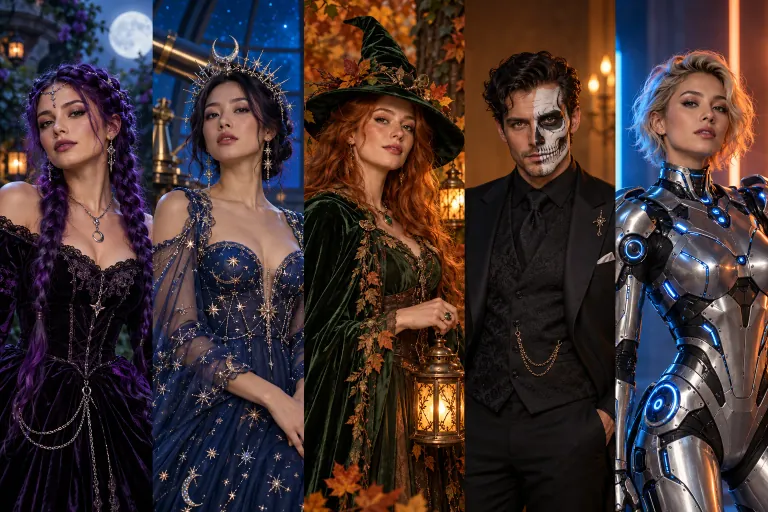
01 / Choose your look
5 editable presets · One photo to start
02 / Upload, customize & create
Powered by Nano Banana 2Reference image
Drag images here or click to select
1 reference image · JPG, PNG, WebP · up to 10 MB
652/5000 characters
Select Model
Credit cost includes the selected resolution, quality, and enabled search tools.

Midnight Braids
Violet braids, silver details and a velvet outfit in a moonlit garden.
Style illustration · Not a Nano Banana 2 sample result. Your portrait will vary with your photo and prompt.
Uses your existing credits. Review the credit cost before generating.
From selfie to alter ego
01
Pick one of five looks. Its editable prompt describes the outfit, setting and details to preserve.
02
Use a well-lit portrait with an unobstructed face. A single-person photo is the best starting point for these presets.
03
Review the prompt, image settings and displayed credit cost. Generate your portrait, then download it or find it in My Creations.
New to editing? Follow the image-generation tutorial. Your completed images are saved in My Creations.
A better starting photo
The AI Halloween costume generator starts with your photo and a detailed editing brief. Use a clear, front-facing or three-quarter portrait, with even light and enough room around your shoulders for the outfit.
Avoid sunglasses, heavy shadows and crowded group shots. Each preset asks for recognizable features, but check the face and hands in your result before sharing.
Make it personal
Keep the base instructions, then change one detail at a time: a burgundy cloak, a candlelit room or a softer makeup look. Selecting another costume replaces the prompt while keeping your uploaded photo.
For a different subject, such as a pet, open the general photo editor. For a character created entirely from words, try text to image.
Find your starting point
Start with the feature you want to change: hair, clothing, makeup or setting. These are prompt choices, not fixed templates. Match the costume to the framing of your photo, then adjust the details below.
Choose this for a gothic portrait where hair is part of the costume. Leave space around the head for the braids. To retain your own hairstyle, replace the violet-braid instruction with “keep the original hair” and keep the velvet outfit.
Choose this when the gown and jewelry matter more than spooky makeup. A waist-up photo gives those details room. For a simpler look, remove the moon crown or glowing stars rather than adding more accessories around the face.
Choose this for an autumn setting with a cloak, hat and warm light. If your photo already has a strong outdoor background, ask to preserve it and change only the outfit. Specify a raised hat brim so the eyes stay visible.
Choose this when theatrical makeup is the main feature. Use a close portrait with both sides of the face visible. Keep the half-face instruction for a recognizable unpainted side; remove it only if you deliberately want full-face costume makeup.
Choose this for metallic clothing rather than a fantasy gown. Include the shoulders so the armor has a clear outline. Keep “human face visible” in the prompt, and remove helmet or mask requests that would conflict with that instruction.
Refine your next attempt
Identify one problem before generating again. These suggested edits clarify the request; they do not guarantee a correction. Replace any conflicting sentence in your prompt instead of appending both instructions. Each new generation uses credits.
Check whether the input face is small, shadowed or covered. Remove requests to change facial shape or age.
Suggested prompt edit
Preserve the original face, expression and skin texture. Change only clothing and background.
Look for conflicting accessories: a low brim, hood, mask and dramatic shadows can all obscure the same area.
Suggested prompt edit
Keep both eyes and the full face visible. Place the hat above the eyebrows; remove the mask.
A tight headshot leaves little room for a gown or armor. Try a wider reference before requesting more costume detail.
Suggested prompt edit
Use a waist-up composition with the shoulders and costume visible. Keep the original pose.
Reduce the number of objects being held. Check whether fingers overlap props in the original photo.
Suggested prompt edit
Remove handheld props. Keep the original hand position and natural anatomy; add no extra accessories.
Remove cartoon, painting or conflicting lighting instructions. If the reference itself is dark, try a brighter source photo.
Suggested prompt edit
Use photographic skin and fabric textures, soft frontal light and readable facial detail. Keep shadows gentle.
Photo tips, prompts and credits for the AI Halloween costume generator.
Choose a costume preset and upload a photo. The editor sends your photo and the editable prompt to Nano Banana 2 to create a new costume portrait. You can adjust clothing colors, background and styling before generating.
Each preset asks the model to preserve your recognizable features, skin tone and proportions. AI editing can still change details. Start with a sharp, well-lit photo and check the result before sharing it.
The editor displays the cost for your selected resolution and settings. This tool uses your existing account credits and the same image-generation pricing as the rest of the site. Selecting a costume or editing a prompt does not spend credits.
The five portraits are AI-created style illustrations, not measured before-and-after results from Nano Banana 2. They help you choose an art direction. Your output will depend on your photo, prompt and selected settings.
Yes. Edit the prompt before generating. Describe the outfit, accessories and background you want, and keep the instructions about preserving the face. Choosing another preset replaces the prompt but keeps your uploaded photo.
These five presets are written for a single-person costume portrait. For pets or groups, use the general image-to-image editor and write a prompt for that subject. Multi-person identity preservation is not guaranteed.
A completed image appears in the Result tab with a download button. Signed-in users can also find saved generations in My Creations. Use the existing Pricing page if you need more credits.
Need more credits? See the existing plans and credit packs.
Start with a photo. Leave with a little more mystery.
Create my costume portrait